How DNS Resolution Works

What is DNS?
We start with understanding what is DNS?, but before that let’s start with a question. “What happens when we enter https://google.com/ in our browser’s url”. Most would say that Google’s page is fetched and loaded in our browser. But servers and in general machines as well only understand numbers, then how is writing this piece of string being understood by the browser. Well that is where DNS shines,
DNS stands for Domain Name System, it translates domain names (google.com) to IP addresses understood by the browser. It is often referred to as the phonebook of the internet.
And today we are just gonna study the journey of a domain name through DNS to being able to fetch the IP of the server it is hosted on.
Why DNS exists?
Before the How of DNS, let’s understnd the Why. Why do we need a name resolution system who’s whole purpose is to convert domain names into IP’s. Could we have just written the IP of a server directly?. Well Yes, but with a long reasoning. You could just enter the IP address of a website and get it’s content but let’s be honest we use a barrage of website, could you really remember all the IP’s of these websites? even if someone could we have to understand that websites constantly change their IP and there isn’t only 1 huge server behind every website. Therefore a constant name which could be resolved into the IP is required and to resolve that a DNS is required.
How DNS Resolves?
So let’s start with resolving names now. There is a set steps which occur when resolving the name, now any domain name is broken down into the following sub-parts:
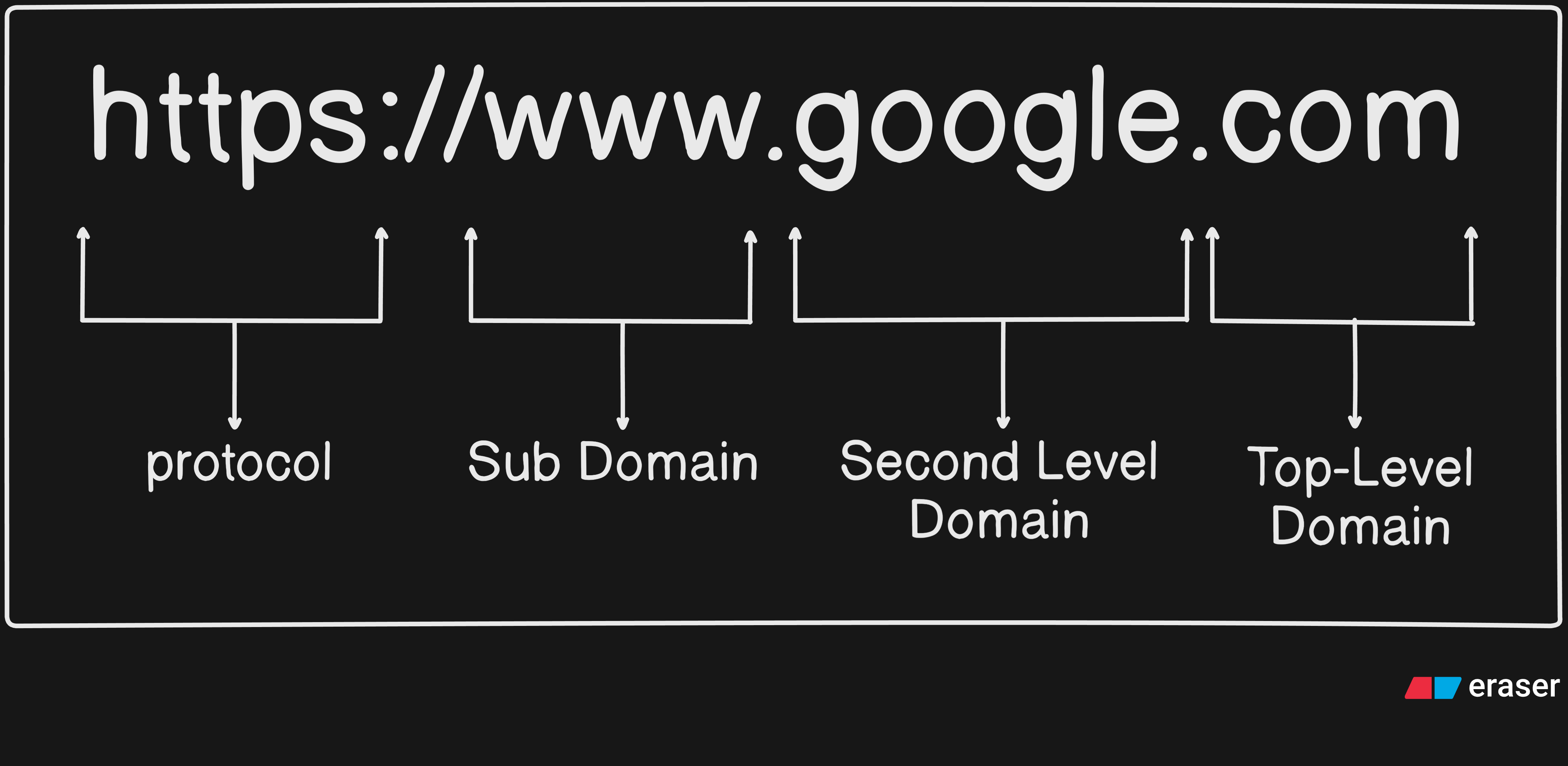
Now whenever we hit enter on this url the following steps occur:
Firstly the local(DNS) cache is checked to see if you recently visited this website and if the IP is present in the cache.
If it is not present in then it is sent to the DNS Resolver, where it firstly sends the request to a Root server.
Now the Root server wouldn’t know the exact IP address but it return that which TLD (Top Level Domain) server is to be queried next based on the extension such as
.com,.org, etc.Then when the TLD server is fetched it directs the resolver to the Authoritative DNS server which is the server which actually holds the IP of the domain.
Then the DNS finall returns the IP to the browser and the browser fetches the website from the server.
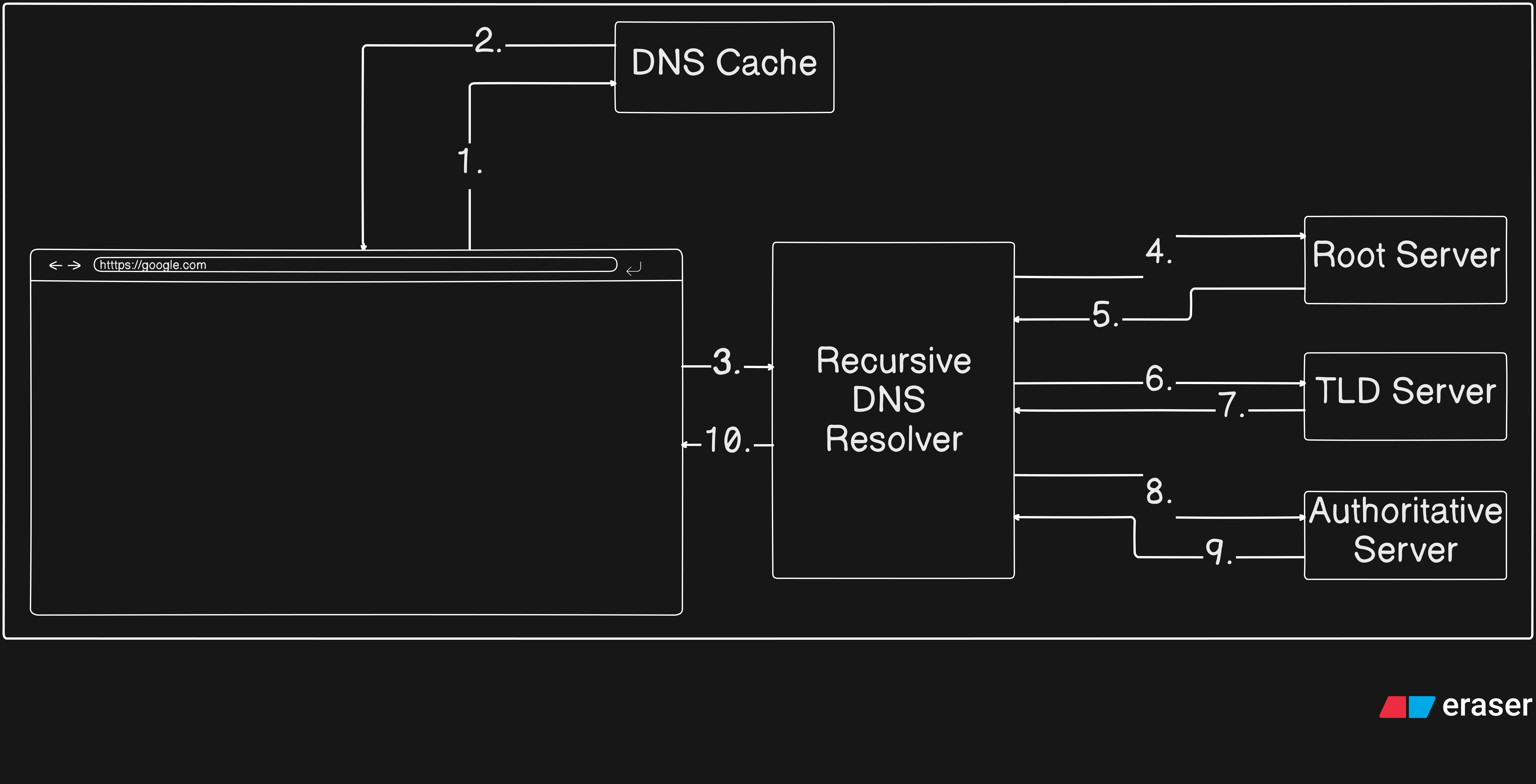
This is the whole process of how a DNS resolver resolves a name to it’s IP, now we used some fancy terms let’s understand those:
DNS Resolver: DNS Resolver can be rightly thought of as a librarian who fetches and returns what is stores at a particular location. Just like in the process the DNS server is returned a referral to another DNS server, which when queried returns another server to query and so on until we reach at the IP of the domain.
Root Server: The Root server are the highest level DNS servers and they know where to locate the TLD servers. Trivia: There are only 13 Root servers named A - M in the world.
TLD Servers: Top Level Domain servers are the ones which manage the common extensions like
.com,.org,.co, etc. They route the resolver to the authoritative server.Authoritative DNS Server: These are the servers which actually store DNS records for domain names, They are the ones who actually respond the IP of the domain.
dig Command
Now although we know the theory of how a DNS works, let’s see how it actually works in the real world. For the we use a diagnostic tool called dig. DIG stands for Domain Information Groper. It helps us manually look through the layers of the network and open the black-box of DNS to see it’s practical working and understand the concept at a deeper level. Mostly it is pre-installed in most machines. Even if not, I am sure you would find a tutorial on how to download and set it up for your operating system.
Let’s start studying dig commands now, most have the following structure:
dig [server] [name] [type]
such as dig google.com would display a complicated text output with mutliple field and numbers. But let’s not get confused and study them one by one.
Understanding dig . NS
dig . NS
The . here represents the root of the DNS hierarchy, NS represents that we are asking for the nameservers. Now when you run this command it is still gonna output a lot of text but let’s look at the ANSWER SECTION of the output it would be similar to:
;; ANSWER SECTION:
.			34884	IN	NS	a.root-servers.net.
.			34884	IN	NS	b.root-servers.net.
.			34884	IN	NS	c.root-servers.net.
...
.			34884	IN	NS	m.root-servers.net.
Remember when we discussed there are only 13 Root servers, well there they are named a through m (very creative right?). Now let’s get this clear they do not know the address of all servers. They know the address of TLD servers. Now we know the 13 root name servers, let’s move on to the TLD servers.
Understanding dig com NS
dig com NS
Now we query the TLD name servers of .com, which will output several nameservers if you look at the ANSWER SECTION such as:
;; ANSWER SECTION:
com.			6179	IN	NS	b.gtld-servers.net.
com.			6179	IN	NS	f.gtld-servers.net.
com.			6179	IN	NS	k.gtld-servers.net.
...
com.			6179	IN	NS	h.gtld-servers.net.
Now well these also don’t know where the IP is but they know where to go to next, it tells the resolver where to look next to find the IP address but with each step we are getting closer to it. You could do the same with org, co, etc.
Understanding dig google.com NS
dig google.com NS
Now we have reached the Authoritative servers, with this command we get the aurhoritative name servers of google.com. They are authoritative as these are maintained by Google and they have all the rest of the DNS Records. The answer section of this would list the name servers of google.com. Any answer returned by authoritative server is considered final for that domain.
Understanding dig google.com
dig google.com
This is what would return and let us see the IP of google.com, often referred to as the A Record of google.com. Now this IP is used by the browser to further use a TCP connect and send a HTTP request and anything further, with this we answer the question “What happens when we enter https://google.com/ in our browser’s url”.
Conclusion
So we conclude this article with the understanding of what is a DNS, why do we need it, how it works. The idea of where to go next?. After that we saw it using the diagnostic tool dig and understood some of it’s commands. Hopefully now you would be able to answer about what is happening when we open a website.
Thank you.


